Turn Text into Audio: A Noiz Studio Text-to-Speech Guide
Text that reads well on a page does not always work when spoken aloud. A novel may introduce several names in one sentence; a blog may refer to a chart the listener cannot see; a lesson may contain numbers that need clearer phrasing. Before generating audio, make sure the listener can follow the content without looking at the original page.
Generation is not the same as delivery-ready audio. Compare the result with the source text, listen for missing words and unfinished sentence endings, and replay the exported file. Long-form work needs additional review of section breaks and transitions. This guide documents a short English sample made inside an existing Noiz Studio project; it does not claim to produce a complete book, blog, or podcast in one pass.
Quick answer: In an open Studio project, select Speech → + Add segment → Type this voice block and enter text. Open the voice selector, choose The Healer (Serena), and click Use. Click Generate, then Play to listen. Export through Export → Audio → WAV → Export, then open the file and check it.
1. Open Speech in a project
The example starts in the Assets view of an existing Studio project. Select Speech to open the area for creating voice segments. The guide does not show project creation from the home screen or an independent Text-to-Speech editor.
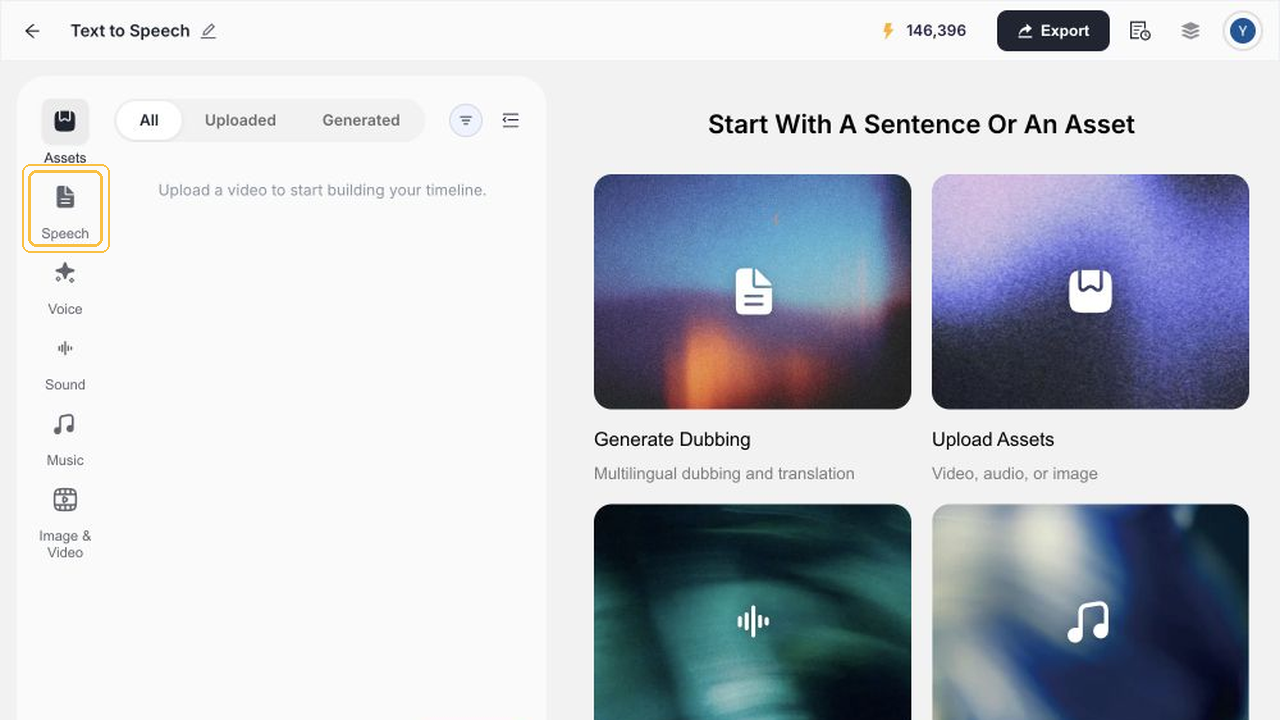
Start with a passage that makes sense on its own. A real opening sentence is a useful short sample: you can hear whether the voice and wording suit the content before preparing a longer recording. Keep an external copy of the text so you can compare it with the generated audio.
2. Add a text segment
Click + Add segment, then Type this voice block. The sample text was:
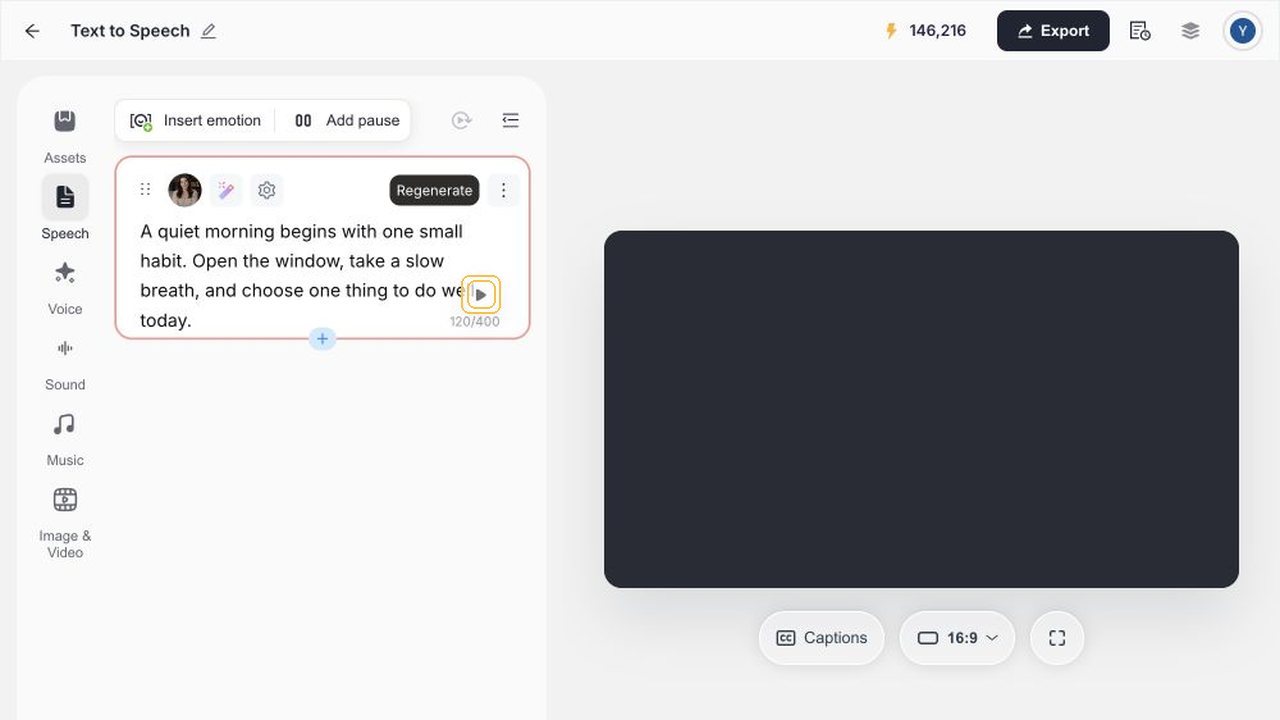
A quiet morning begins with one small habit. Open the window, take a slow breath, and choose one thing to do well today.
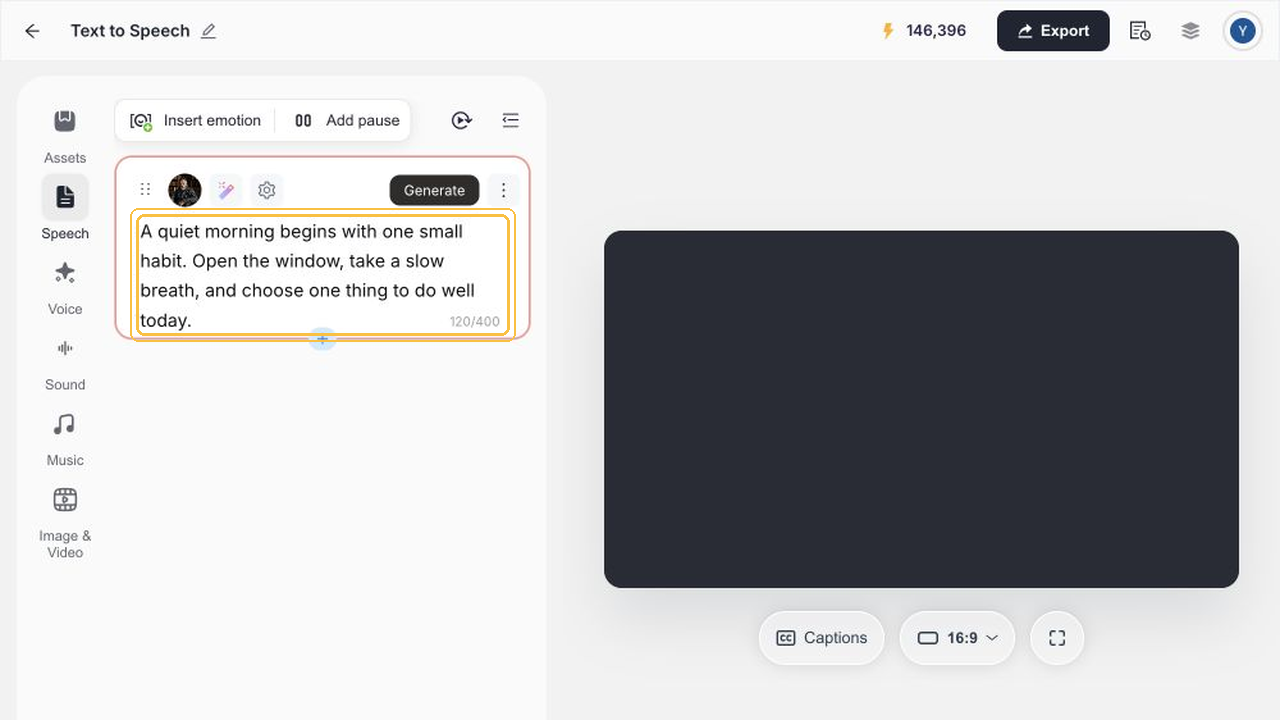
The interface counter changed from 0/400 to 120/400 during this test. That is an observation from this segment and interface—not a universal character limit for every entry point or version. For longer text, check the current interface and plan appropriate sections rather than assuming one segment can hold an entire work.
3. Choose a voice for the material
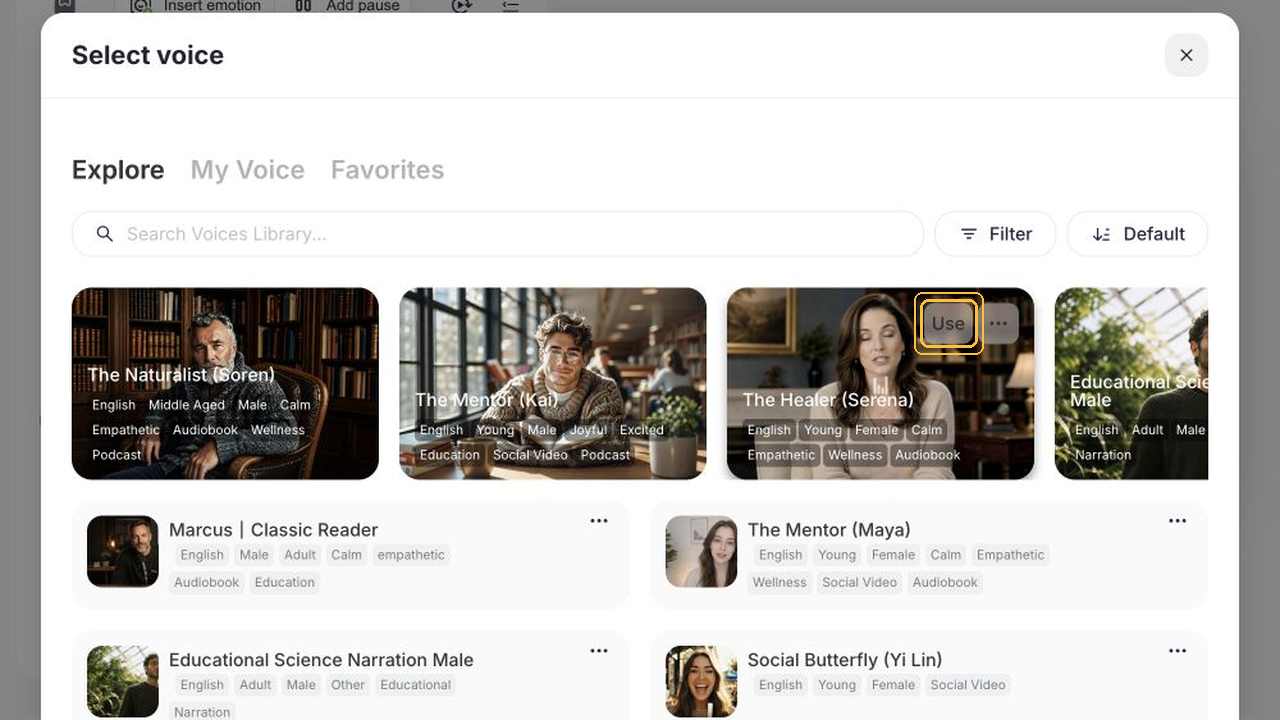
Click the segment’s default voice, The Naturalist (Soren), to open Select voice. Choose The Healer (Serena) from the recommended voices and click Use. Voice names and available options can change, so listen to the current options against your actual text.
4. Generate and listen
Click Generate and wait until a playable result appears. This example records one generation of one English segment. Regenerate was visible but not tested; emotional controls, pauses, multiple voices, and long-form continuity were not verified.
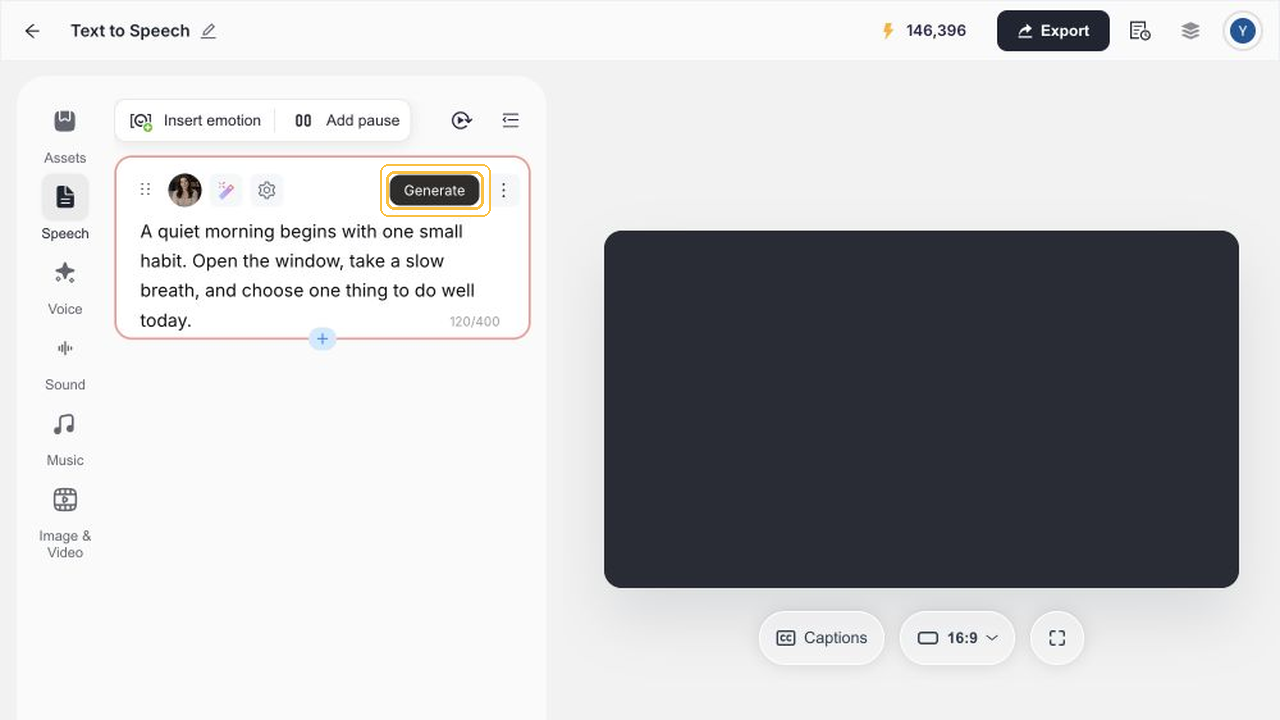
Click Play to listen. Follow along with the saved text to catch omissions, then listen once without reading to check whether the phrasing is easy to understand. The workflow does not verify how a project is saved or recovered after closing.
5. Export a WAV and check it
Choose Export → Audio → WAV → Export. Open the downloaded file rather than relying only on the in-project preview. Confirm that it plays to the end and that the last sentence is complete.
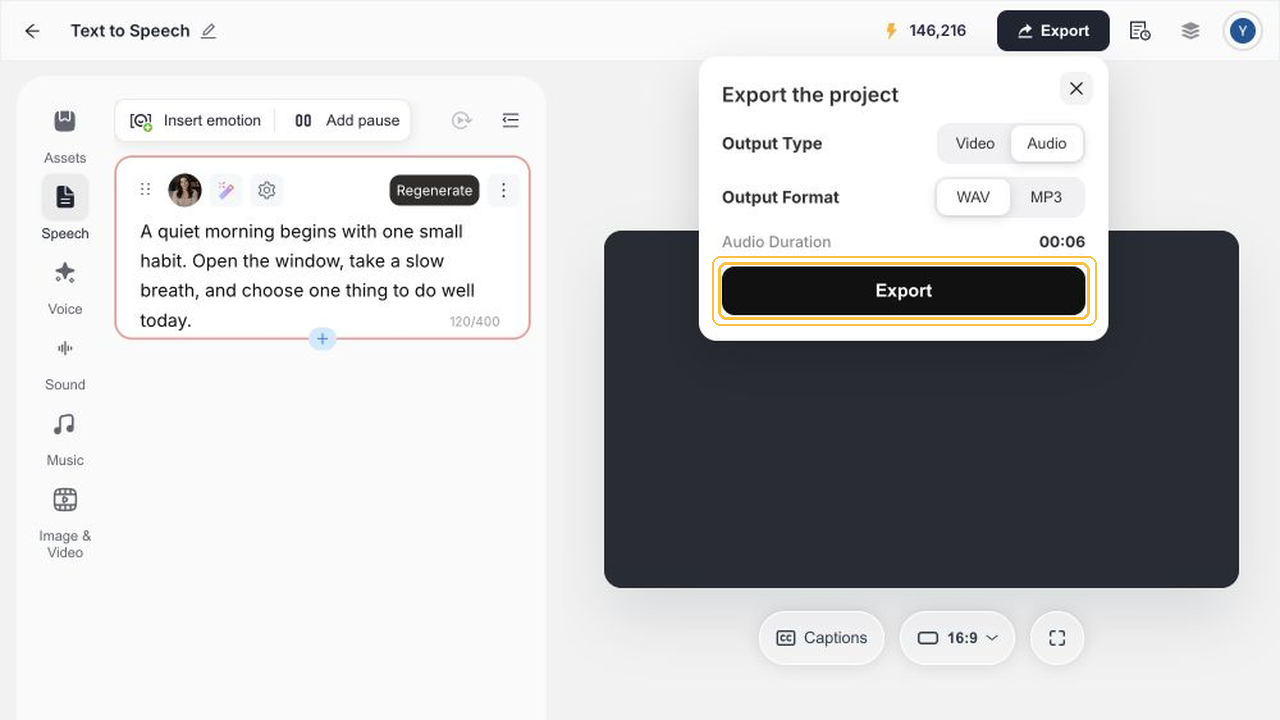
The sample file was checked at 6.046961 seconds, 44.1 kHz, stereo. Those measurements describe this short export only; other text and project settings may produce different results.
Adapt the review to the format
Audiobooks: Break the manuscript into manageable sections and check names, speaker changes, and chapter transitions. This short sample does not verify a full book workflow.
Blog-to-audio: Replace references such as “see the chart below” with enough spoken context. Keep important figures while removing page-only navigation.
Educational audio: Standardize how abbreviations, units, and numbers should be read. Check that each explanation can be followed without the visual material.
Podcast scripts: Mark the opening, topic changes, speakers, and ending. Multiple-speaker setup was not tested in this example.
What this test verifies
| Capability | Evidence from this example |
|---|---|
| Open Speech, add a segment, and enter text | One English sample in an existing Studio project |
| Select a voice and generate | Serena selected; one generation completed |
| Play the result | One generated segment reviewed |
| Export WAV | File checked at 6.046961 seconds, 44.1 kHz, stereo |
| Character counter, available voices, and file properties | Observations from this interface and export only |
| Regeneration, emotion and pause controls, multiple roles, long-form output, save/recovery | Not verified in this workflow |
Make a short sample first
Start with a passage that represents the intended audio. Add it in Speech, choose a voice, generate and compare it with the source text. Then export and replay the WAV before planning longer sections.
Open Noiz Studio. This link opens Studio; the steps in this guide start inside an existing project.
Related guide: Create an AI voiceover for video.