Why AI Video Translation Needs an Inspectable Workflow
Translating a video into another language is never as simple as swapping one audio track for another. Whether globalizing short dramas and motion comics, localizing commercial ads, scaling creator marketing, or translating online courses, the final production quality hinges on phrase duration, speaking cadence, visual timing, background music balance, and the ability to revise a single line without discarding the entire project.
Noiz Studio organizes source video, original audio, and generated translations into a single interactive editing environment. You can isolate original audio, apply Audio Translate to the extracted track, inspect translated segments line by line, audition timing directly on the timeline, and export the finished video.
Many AI video translations fall short not because the translation model failed entirely, but because editors receive an indivisible audio file only to discover a mispronounced proper noun, an overly verbose phrase, or an unnatural pause that clashes with a scene cut. Re-rendering the entire video from scratch risks introducing unexpected variations in segments that were previously acceptable.
A reliable approach treats video translation as an inspectable, reversible production pipeline: verify source media, isolate original speech, generate a targeted language pass, refine timing against footage line by line, and finalize export. This guide demonstrates a verified 43-second video translation into Japanese, covering timeline import, Split Audio, Audio Translate, segment review, playback audit, and 720p MP4 export.
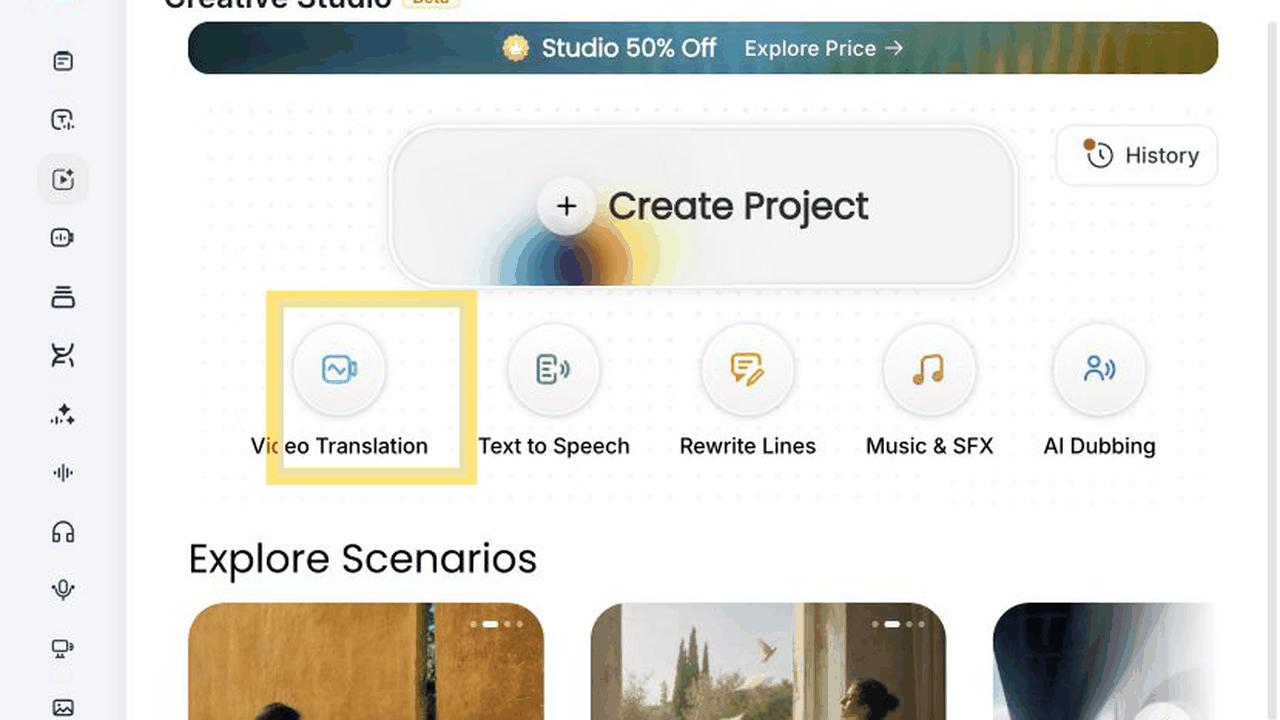
Place Source Footage on the Timeline
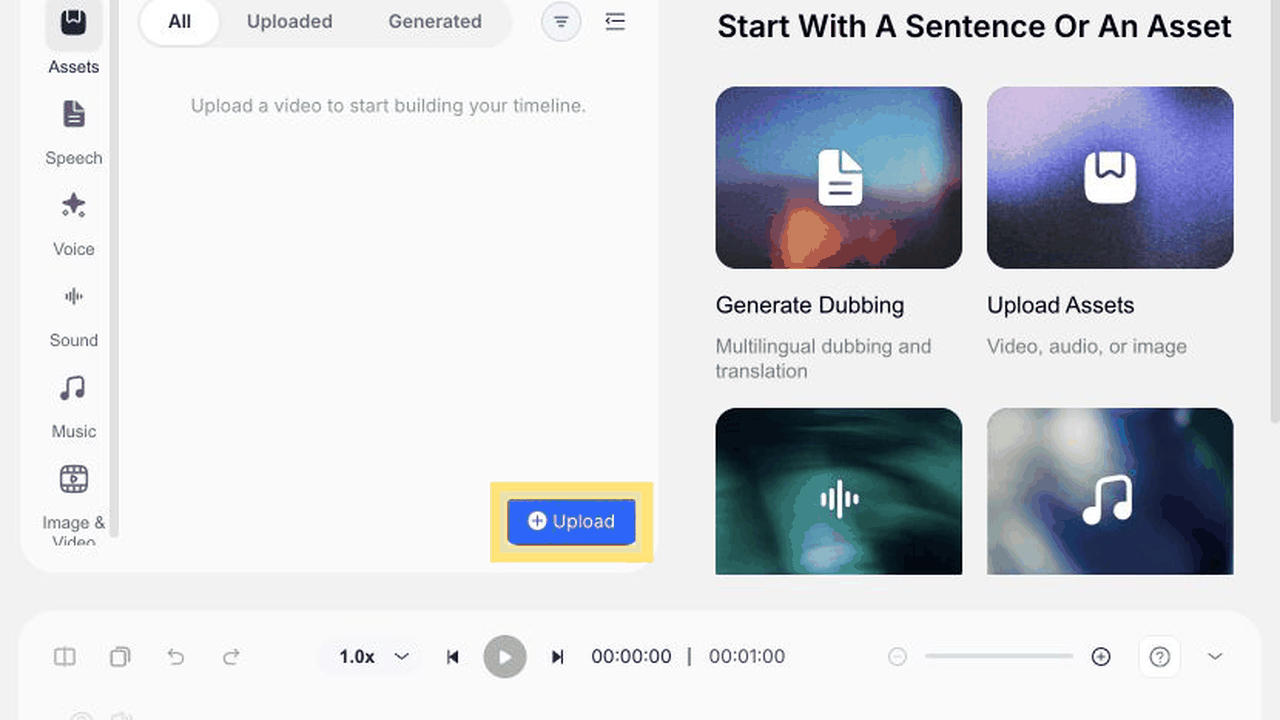
Open Noiz Studio, click Video Translation, and click Upload in the Assets panel to import your source footage. Once uploaded, hover over the asset card and click the Add button in the top-right corner to place the video onto the timeline.
The most important verification at this stage is asset consistency: confirm that the preview viewport, Assets card, and timeline display identical footage with matching duration. Replacing footage mid-production compromises downstream translation checks and final exports.
Listen to 10 to 15 seconds of the original audio before beginning translation. Low dialogue volume, overlapping speakers, or heavy background music complicate transcript review. When available, prioritize master tracks with isolated dialogue rather than relying on corrective filtering later.
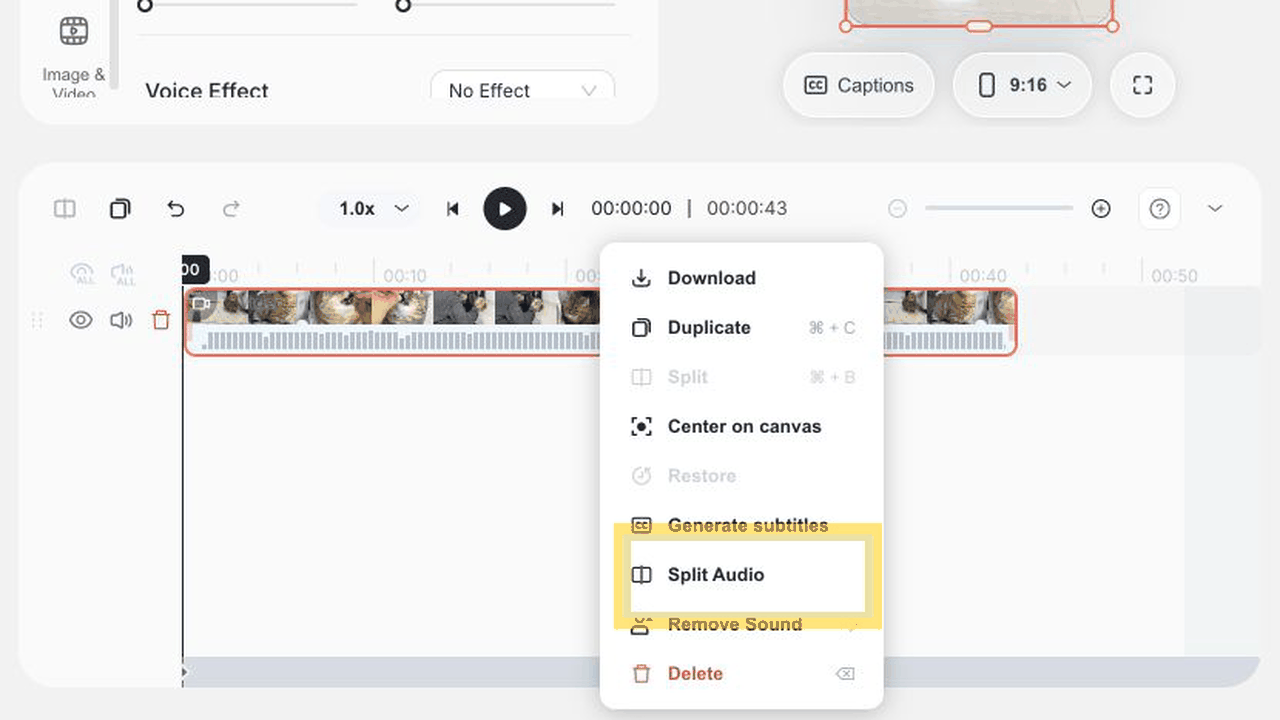
Isolate Original Audio with Split Audio Before Translating
When video footage is first placed onto the timeline, visual and audio tracks remain combined in a single clip. Right-click the video clip and select Split Audio. Once processed, the timeline retains the video track while generating a separate, dedicated audio track directly below it.
Why isolate audio before translating? Downstream speech recognition, timing analysis, and synthesis operate specifically on spoken audio tracks. Having an independent audio lane allows editors to evaluate original audio, translated synthesis, and video pacing separately. When a phrase requires adjustment, the video remains untouched, while the original voice track remains available for direct comparison.
Every production workflow should strictly maintain this progression: right-click the video clip, execute Split Audio, and confirm the creation of the standalone audio track.
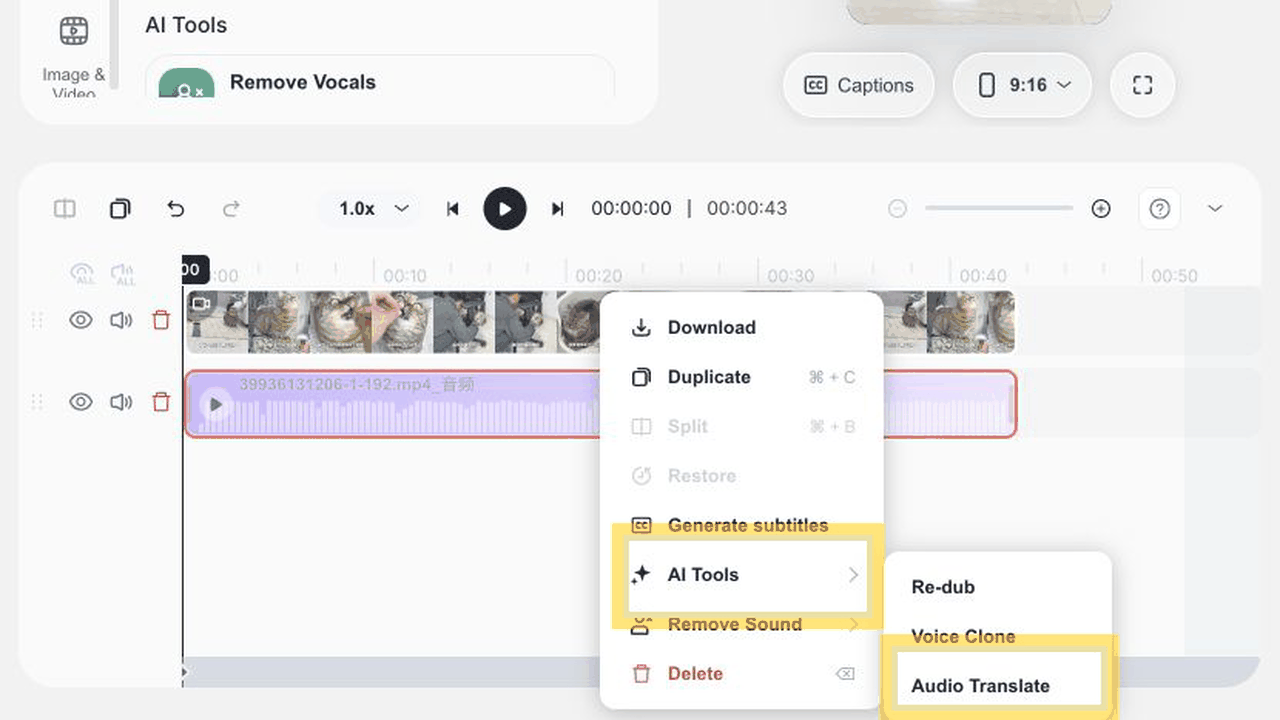
Launch Audio Translate from the Standalone Audio Track
Right-click the newly generated audio track, hover over AI Tools, and select Audio Translate from the secondary submenu.
A common operational confusion occurs when selecting tracks: right-clicking the video track displays Split Audio, whereas AI Tools and Audio Translate appear only when right-clicking the isolated audio track. Clearly identifying the active track prevents navigation errors.
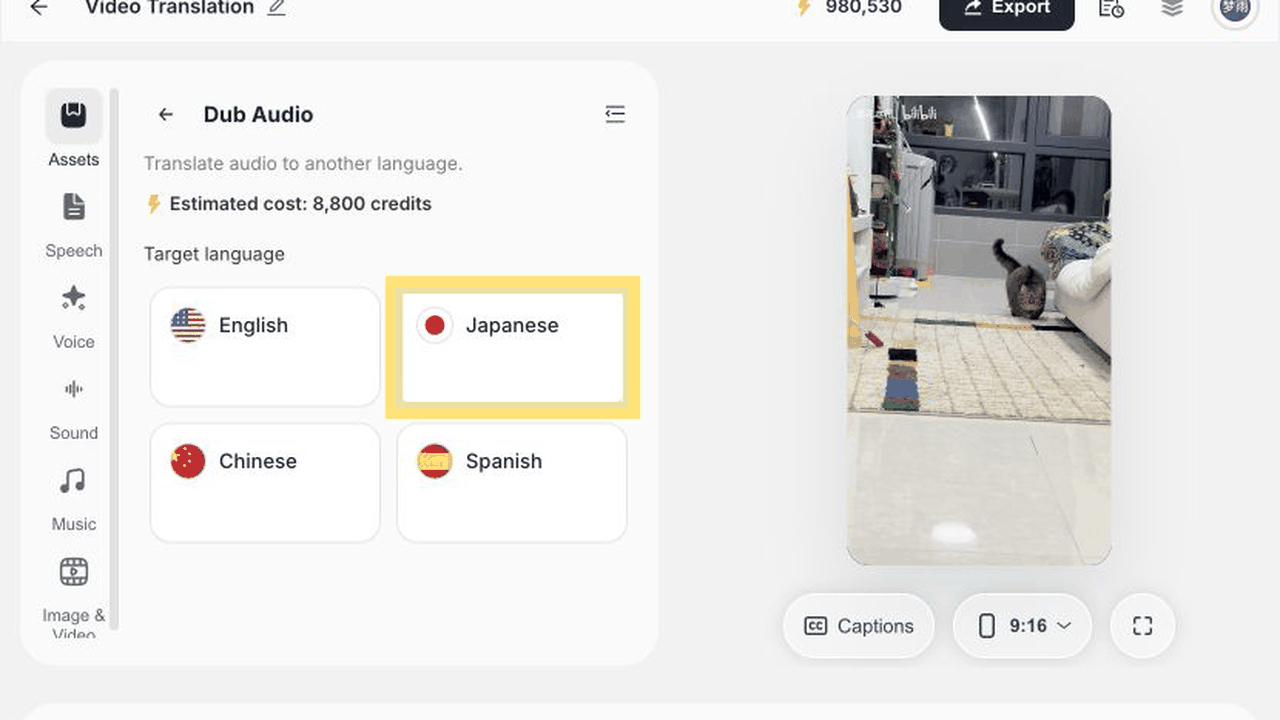
Clicking Audio Translate opens the Dub Audio configuration panel on the left sidebar. This panel displays estimated credit consumption alongside target language choices. Reviewing credit estimates before triggering synthesis ensures budget control across localization projects.
Evaluate Credits and Deliverable Scope Before Choosing Languages
In our verified test project, the Dub Audio interface presented four primary language choices: English, Japanese, Chinese, and Spanish. For our demonstration, we selected Japanese, which generated localized speech segments upon completion.
Avoid launching translations across all target languages simultaneously on long-form footage. Begin with your highest-priority market, complete the end-to-end workflow, and evaluate three critical criteria:
Terminology and brand names: Are proper nouns translated accurately?
Duration and pacing: Does the translated dialogue fit comfortably within original scene cuts?
Voice style and emotion: Does the generated delivery match the content's mood and format?
Once the primary language edition passes review, scale to subsequent languages. Validating the baseline script first prevents systemic errors from compounding across regional variants.
Treat Translation Results as an Editable Voiceover Script
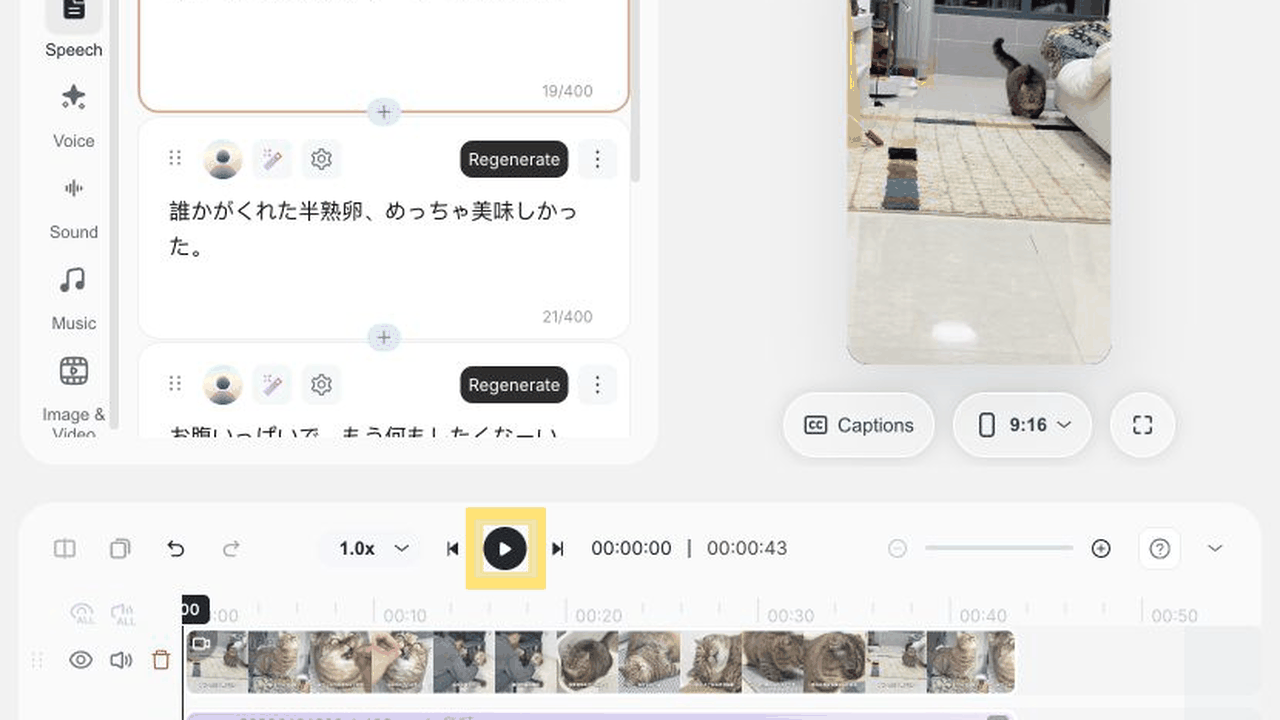
Upon processing, Noiz Studio generates an inspectable multi-segment arrangement rather than a locked audio file. In our Japanese test, the output produced five distinct text and audio segments, each equipped with dedicated playback controls, settings, and a Regenerate action, with corresponding clips aligned on the timeline.
We recommend reviewing text before listening to audio. Reading transcripts makes identifying misspellings, proper names, numerical values, and domain terminology fast and precise; listening subsequently validates pronunciation, pause placement, and natural inflection.
When a specific phrase requires revision, modify the text or invoke Regenerate only on the affected segment. Avoid re-running the full composition over isolated pronunciation nuances. Segmented regeneration protects approved sections from drifting and streamlines editorial sign-off.
For high-stakes commercial ads, educational courses, and corporate releases, synthetic translations should always undergo native-speaker review. AI establishes the localized foundation, while human oversight ensures brand precision.
Audit Rhythm and Pacing Against Video Frames, Not Just Words
A grammatically accurate translation does not guarantee a video is broadcast-ready. Languages naturally differ in syllable density and expression length: translated sentences may overrun a visual cut, or conclude prematurely before an actor completes an action.
Press the master Play button on the timeline to preview the combined edit from the beginning. Focus attention on three crucial moments:
Phrase endings near scene cuts: ensure voiceovers do not spill across into the following scene;
Physical pauses, head turns, or facial expression changes of on-screen presenters;
Layered balance among translated narration, background music, and ambient sound effects.
When a localized line runs too long, refine the script phrasing or adjust punctuation first. If spacing feels unnatural, apply Regenerate to that segment. Avoid blanket time-stretching or global speed increases, as accelerating the entire track compromises previously balanced sections.
Retain the original separated audio track throughout editorial review. It serves as an essential baseline for emotion, original cadence, and nuance until final approval.
Verify Audio Tracks and Resolution Before Video Export
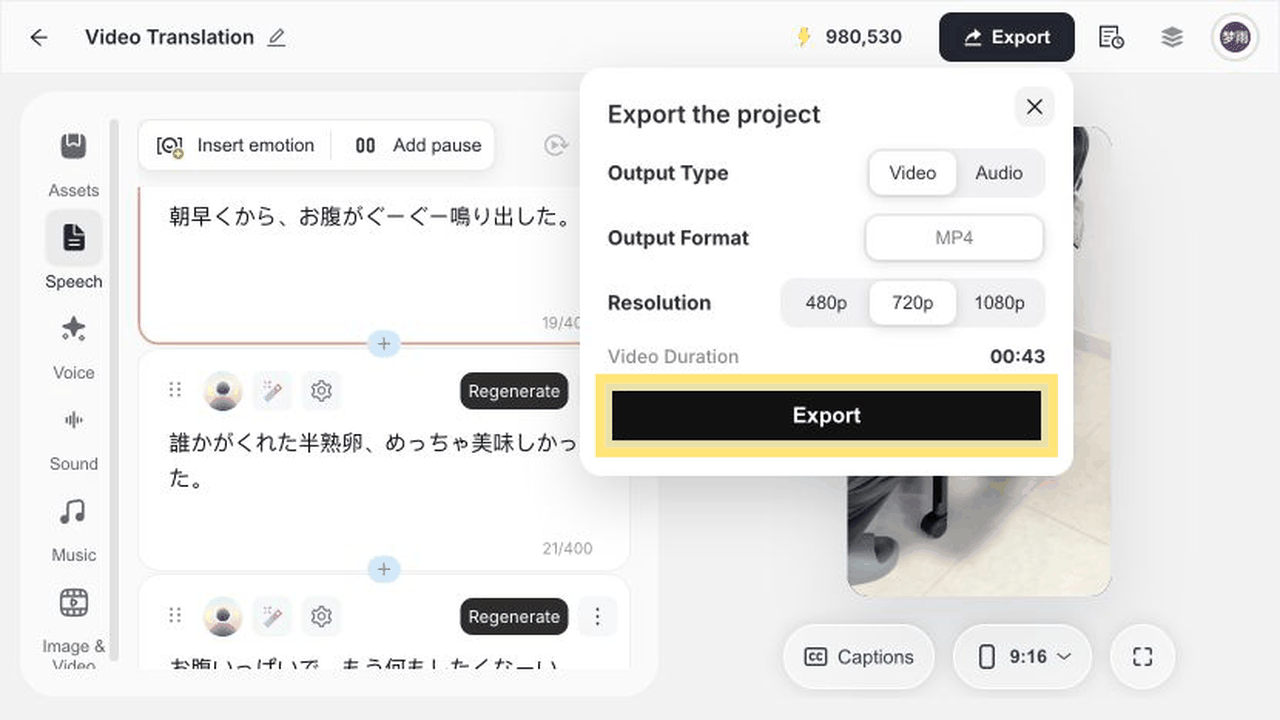
After approving translated voiceovers, click the Export button in the top right. Our verification confirmed support for Video export in MP4 container format, with 480p, 720p, and 1080p resolution settings, successfully producing a 720p deliverable.
Before initiating the final render, perform a pre-flight checklist across your timeline lanes:
Decide whether original speech should be completely muted or lowered for subtle ducking;
Ensure background music beds do not overpower spoken narration;
Check for accidental clip overlaps or extended dead air between speech blocks;
Confirm aspect ratio matches your target distribution platform;
Verify total project duration corresponds accurately to your master footage.
Submit the export once track levels and settings are confirmed, and download the finished MP4 asset.
Four Primary Globalization Scenarios for Video Translation
Short Dramas and Manga Adaptations
Short-form episodic series and motion comics feature rapid-fire dialogue and shifting character dynamics. Editable segments allow teams to refine character honorifics, catchphrases, and emotional delivery per scene without re-rendering entire episodes, accelerating international release schedules.
Commercial Ad Localization
High-production commercial footage can be adapted across global regions efficiently. Value propositions, promotional figures, and calls-to-action must be aligned with exact visual beats, keeping messaging concise within strict time limits.
Creator and Influencer Marketing
Brands expanding into new regions can localize successful product reviews, unboxings, and endorsements into regional languages. Segment-based auditioning preserves the creator's natural cadence and conversational presence, avoiding rigid, monotone delivery.
Online Courses and Training Modules
Educational lectures, software walkthroughs, and internal corporate training require recurring updates. Regenerating individual tutorial steps is far more maintainable than re-recording full modules, ensuring technical terminology remains precise.
Capability Boundaries
This guide is based strictly on hands-on software interaction and verified outputs, avoiding speculative assertions. Production teams should align their post-production planning with actual interface capabilities.
Capability | Validation Status | Operational Boundary |
|---|---|---|
Upload video and add to timeline | Verified · Native feature | Tested and confirmed using a 43-second MP4 video clip |
Split Audio extraction | Verified · Native feature | Successfully separates dialogue into an independent timeline track |
Audio Translate workflow | Verified · Native feature | Launched from standalone audio track, producing Japanese audio |
Segment editing and Regenerate | Verified · Native feature | Result divided into 5 editable segments with per-segment re-generation |
MP4 export in 480p / 720p / 1080p | Verified · Native feature | Successfully exported full video in 720p MP4 format |
Target language selection | Dynamic product status | Panel presented English, Japanese, Chinese, and Spanish options |
Credit consumption estimates | Dynamic product status | Subject to real-time calculation in Dub Audio prior to synthesis |
Automated Lip Sync | Unverified in this flow | Current Audio Translate pipeline does not include dedicated lip-sync controls |
Original voice preservation / cloning | Unverified in this flow | No explicit Voice Clone binding selector appeared in this Dub Audio interface |
Produce Your First Localized Video Edition
Upload your source footage, isolate the dialogue with Split Audio, and initiate Audio Translate from the dedicated audio track. Audit the synthesized lines against video cuts, balance audio levels, and export a clean 720p MP4 file.
This structured approach does not eliminate the need for careful editorial review, but it transforms AI video translation from an opaque, unpredictable render into an inspectable, reversible, and scalable localization pipeline.
Open Noiz Studio to launch your video translation workflow today.